I found it difficult to find a configuration that works almost out of the box with MediaWiki and any supported database (SQLLite, MariaDB, MySQL, Postgress)in Docker on a Raspberry Pi. I hope this helps you compose and configure a basic MediaWiki site with a MariaDB back-end. This guide assumes you have Docker and Docker Compose installed on Raspberry Pi OS with a known username and password. Anything in parentheses should be replaced with your own string/variable/integer.
Why do this?
I started using MediaWiki as a self hosted wiki for anything I thought I or my family should document. Deploying it via Docker Compose makes it pretty easy to manage.
How To:
- Create a new directory for your docker compose file. I created mine in my home directory on the Raspberry Pi.
- mkdir /home/(username)/docker_files/mediawiki
- Change to your new MediaWiki directory.
- cd /home/(username)/docker_files/mediawiki
- Create a new docker compose file.
- sudo vim docker-compose.yaml
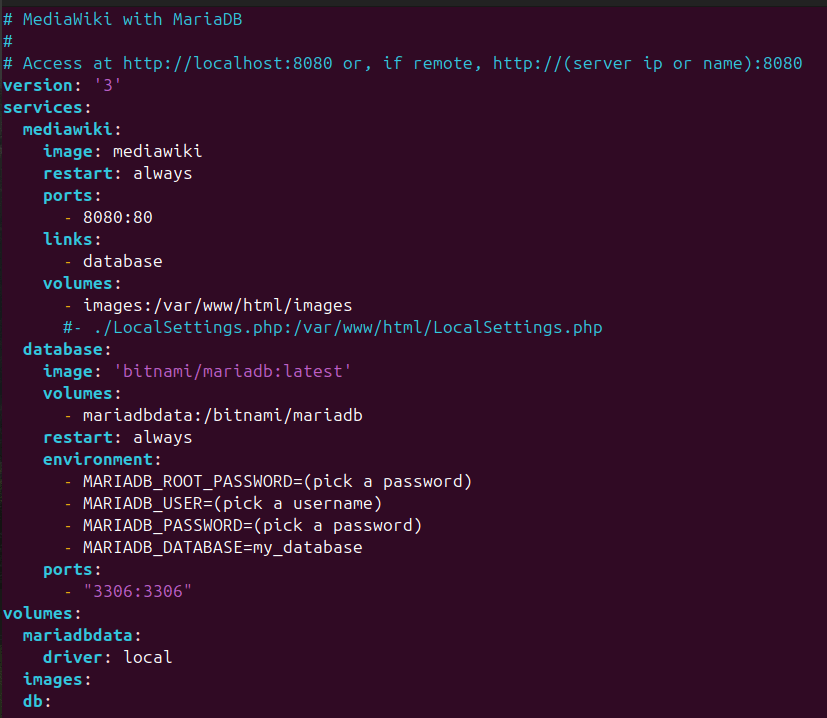
- Copy and paste the below file into the editor. You’ll need to press i to start editing the document. If you’re not familiar with YAML, it is incredibly sensitive to spaces. You can easily get errors for having something off by one space. Make sure to carefully copy this text. Use “ctrl+shift+v” to paste into VIM.
# MediaWiki with MariaDB
#
# Access at http://localhost:8080 or, if remote, http://(server ip or name):8080
version: '3'
services:
  mediawiki:
    image: mediawiki
    restart: always
    ports:
      - 8080:80
    links:
      - database
    volumes:
      - images:/var/www/html/images
      #- ./LocalSettings.php:/var/www/html/LocalSettings.php
  database:
    image: 'bitnami/mariadb:latest'
    volumes:
      - mariadbdata:/bitnami/mariadb
    restart: always
    environment:
      - MARIADB_ROOT_PASSWORD=(pick a password)
      - MARIADB_USER=(pick a username)
      - MARIADB_PASSWORD=(pick a password)
      - MARIADB_DATABASE=my_database
    ports:
      - "3306:3306"
volumes:
  mariadbdata:
    driver: local
  images:
  db:
- Press ESC, then type wq! and press enter to save the file.
- Double check the file was created successfully with this command.
- ls
- Double check that the contents of the file were saved correctly with this command.
- cat docker-compose.yaml
- Deploy your container with the following command.
- docker-compose up -d
- the -d flag will run the container in detached mode in the background. You’ll use this flag for a lot of containers.
- docker-compose up -d
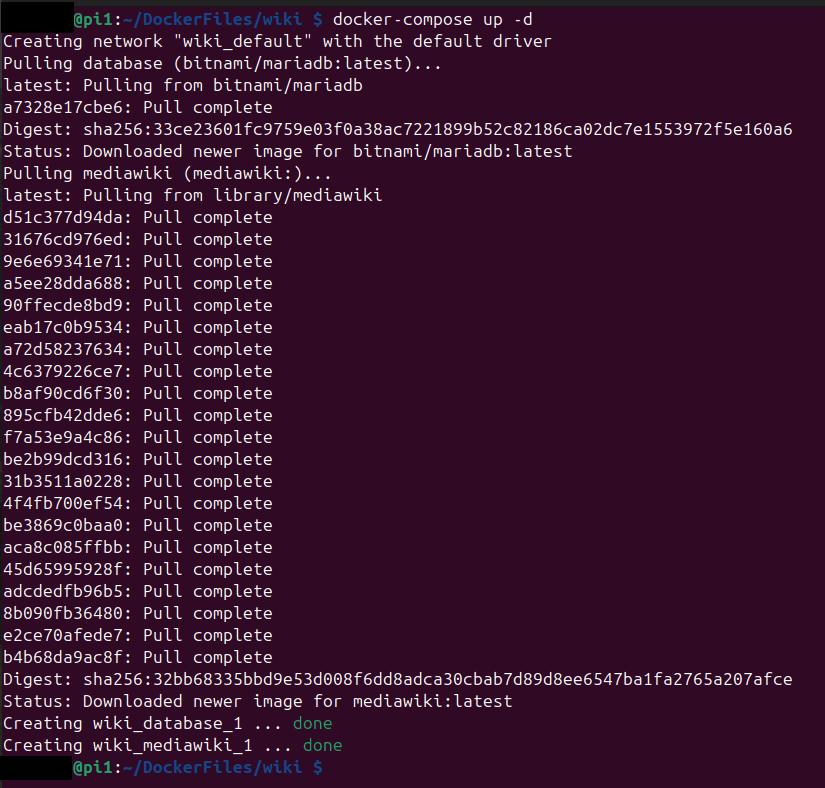
- At this point, you should have a running instance of MediaWiki and MariaDB. Navigate to the url of the MediaWiki site. This could be either:
- http://localhost:8080
- Use this if you are running the container on the machine you’re reading this on.
- http://(server ip or name):8080
- http://localhost:8080
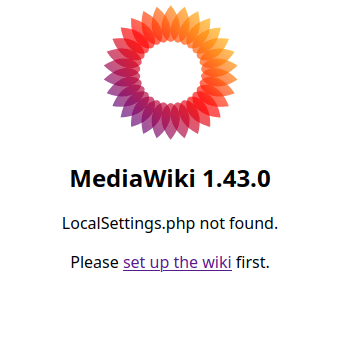
- You should see this screen.
Configuring the Wiki.
- Click on “set up the wiki” to get started.
- The first couple options are straightforward, select your preferred language and check that the system you’re installing on has passed the requirements checks.
- You should now be on the database configuration page.
- Change the database host name to “database”.
- Enter the root password that you set for the root user in the password box.
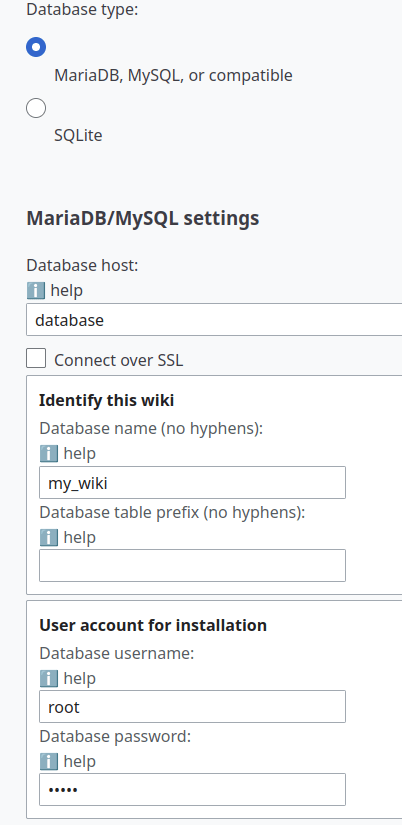
- Click “Continue” until you get to the naming page for your database.
- Enter the name you’d like for your wiki and create an Admin account.
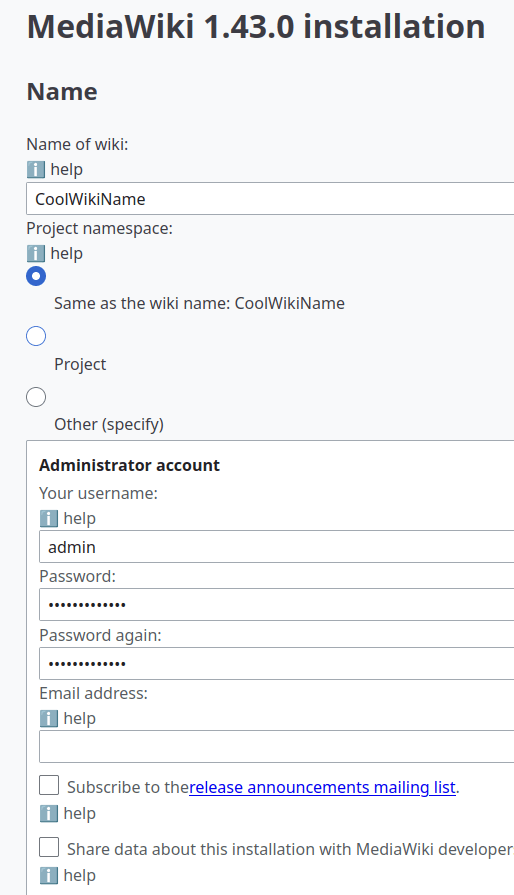
- At this point, you can select “I’m bored already, just install the wiki” or “Ask me more questions”.
- If you go with “Ask me more questions”, you’ll be given additional options like what type or wiki you want it to be, theme options, plugin options etc. This guide does not cover the installation of additional plugins, click these at your own peril.
- After you’re gone through either of the above options, click “Continue”.
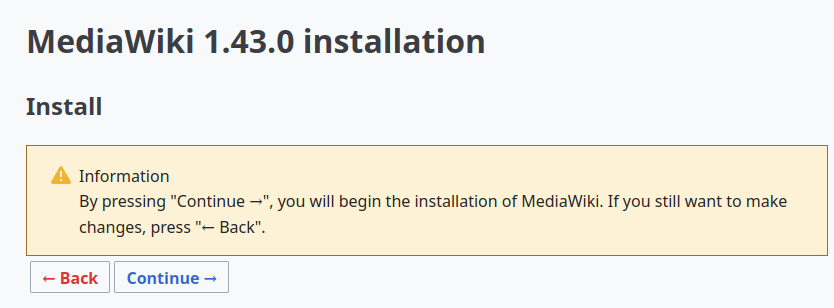
- You should now be on the installation page. If you’re satisfied with your configuration, click “Continue” to install.
- A successful install should look like this:

- Click “Continue”. This should automatically download a file called “LocalSettings.php”. This file is required for your wiki to run. If this does not automatically download, there is an option to do so manually. Do this immediately because you can’t get it back once you get off this page.

- You need to get the “LocalSettings.php” file into the same folder that your “docker-compose.yaml” lives in. You created this location earlier in this guide.
- /home/(username)/docker_files/mediawiki
- Since I don’t know where you have created this folder, I leave it up to you to get the file there. After you move this file, the contents of your folder should look like this.

- You need to modify the permissions on this file so that the container can access it. I do a chmod 777, I am not sure if this is best practice, but it works. Use this command in the same folder you just moved the file into.
- chmod 777 LocalSettings.php
- We need to modify the “docker-compose.yaml” file to point to the LocalSettings,php file. This is fairly simple, but the steps are important.
- Take down the MediaWiki container.
- docker-compose down
- Edit the “docker-compose.yaml” file. Go to line 15 and remove the hash.
- Before:

- After:

- Before:
- Take down the MediaWiki container.
- Bring the container back up with the command you used earlier in this guide.
- docker-compose up -d
- Navigate to the url of your site. Remember this can be one of 3 options.
- http://localhost:8080/index.php/Main_Page
- http://(server ip or name):8080/index.php/Main_Page
- You should now have a functional installation of MediaWiki with a MariaDB back-end running in a docker container.
 AstroRelay